The script continues with STEP3
$OutFile="C:\quser\ad-userimport-scripts\ujuserekerkeztek.txt"
$LogFile="C:\quser\ad-userimport-scripts\adderlog.txt"
$InFile="C:\quser\ad-userimport-scripts\opslistanevekkel.txt"
$WinUsers = "C:\quser\ad-userimport-scripts\winjumpusers.txt"
# we have some test users which must not be disabled
$ToIgnore = "user1","user2","user3","master1","master2"
$GrA = @() # needed!
$GrA = import-csv $InFile # external LDAP group members
$GrB = gc $WinUsers # external LDAP group members who has additional administrative permission to be imported here
$GrC=(Get-ADGroupMember -identity jumpusers).SamAccountName # members who are already in the local AD
$Gone = $GrC | where {$GrA.uid -notcontains $_ } # members who are already in the local AD but not in the foreign AD - seems like deleted there and already left the team
$ToDelete=(Compare-Object $Gone $ToIgnore).InputObject # generating the user list who are to be deleted locally
# some checks to avoid stupid errors - too short list means we caught only some error message
$i=@(Get-Content $InFile).Length
if ( $i -lt 15 ) {
write-host "There is something wrong with the list, CHECK IT !" | Out-File $LogFile -Append
exit 1
}
$i=@(Get-Content $WinUsers).Length
if ( $i -lt 10 ) {
write-host "There is something wrong with the list, CHECK IT !" | Out-File $LogFile -Append
exit 1
}
# logging
Get-Date | Out-File $LogFile -Append
# handling users who are gone meanwhile from the external LDAP
if ( $ToDelete -ne $null ) {
$ToDelete | ForEach-Object {
#Delete-ADaccount -Member $_ -Confirm:$false # delete
#Remove-ADGroupMember -Identity jumpusers -Member $_ -Confirm:$false # removes from the group
Disable-ADAccount -identity $_ # disable the user
Write-Host "DISABLED:" $_ | Out-File $LogFile -Append
}
}
# Collecting the users into external data file who are not added yet locally. This is the trickiest part of the script because here we just find the loginID of the user. The first and the last names come from the second list! So the loginID (SAMaccount name) needs to be found in the second list and the realname comes with that from there.
$result = $GrB | Where {$GrC -NotContains $_}
$GrA.uid|ForEach-Object {
$uidja = $_
$ndx = [array]::IndexOf($GrA.uid,$uidja)
$result|Foreach-Object {
if ($_ -match $uidja ) {
$GrA.FirstName[$ndx] $GrA.LastName[$ndx]
$uidja+","+$GrA.FirstName[$ndx]+","+$GrA.LastName[$ndx] | Out-File $OutFile -Append
}
}
}
#STEP4
# This is where the safe import is happening for the new users. The password is generated locally because that can't be exported from the external LDAP so won't be identical.
[...]
A következő címkéjű bejegyzések mutatása: Windows Server 2012. Összes bejegyzés megjelenítése
A következő címkéjű bejegyzések mutatása: Windows Server 2012. Összes bejegyzés megjelenítése
2018. január 2., kedd

User import from foreign LDAP into own AD - PART1
Here is a rather complex script system I wrote. This is just for myself to remember and record my brilliant thoughts. I doubt if anyone else could use it. The goal is to get my users (including their login names and real names) from an external LDAP system and import them into my AD. (Windows based.) I'm doing the first step by using the ldapsearch from the opensource OpenLDAP package.
# STEP1: the raw list
C:\OpenLDAP\ClientTools\ldapsearch -D "cn=queryuser,dc=admin" -w "$$$$" -h 172.16.16.16 -b "dc=admin" -s sub "(&(objectclass=person)(|(gidnumber=100)(gidnumber=110)))" > C:\quser\ad-userimport-scripts\opslista.txt
# STEP2: an annoying thing here, because in the list we have both Base64 encoded and normal usernames we need to decode only the encoded ones.
$source = Get-Content "C:\quser\ad-userimport-scripts\opslista.txt" | Select-String "cn:", "displayName" #
$OutFile="c:\quser\ad-userimport-scripts\opslistanevekkel.txt"
if (Test-Path $OutFile) { Remove-Item $OutFile }
"uid,FirstName,LastName" > $OutFile
$Name_list = @()
$uid_list = @()
$source|ForEach-Object {
if ($_ -match "displayName:: ")
{
$tem = ($_ -replace "displayName:: ","")
$tam = [System.Text.Encoding]::UTF8.GetString([System.Convert]::FromBase64String($tem))
# $Base64_list += ($_ -replace "displayName:: ","")
$Name_list += $tam
}
elseif ($_ -match "displayName: ")
{
$tum = ($_ -replace "displayName: ","")
$Name_list += $tum
}
}
$source|ForEach-Object {
if ($_ -match "cn: ")
{
($_ -replace "displayName: ","")
$uid_list += ($_ -replace "cn: ","")
}
}
for($i=0;$i-le $uid_list.length-1;$i++)
{
$Name_list[$i]=($Name_list[$i] -replace " ","")
$uid_list[$i]+","+$Name_list[$i] | Out-File -filepath $OutFile -Append
}
# STEP1: the raw list
C:\OpenLDAP\ClientTools\ldapsearch -D "cn=queryuser,dc=admin" -w "$$$$" -h 172.16.16.16 -b "dc=admin" -s sub "(&(objectclass=person)(|(gidnumber=100)(gidnumber=110)))" > C:\quser\ad-userimport-scripts\opslista.txt
# STEP2: an annoying thing here, because in the list we have both Base64 encoded and normal usernames we need to decode only the encoded ones.
$source = Get-Content "C:\quser\ad-userimport-scripts\opslista.txt" | Select-String "cn:", "displayName" #
$OutFile="c:\quser\ad-userimport-scripts\opslistanevekkel.txt"
if (Test-Path $OutFile) { Remove-Item $OutFile }
"uid,FirstName,LastName" > $OutFile
$Name_list = @()
$uid_list = @()
$source|ForEach-Object {
if ($_ -match "displayName:: ")
{
$tem = ($_ -replace "displayName:: ","")
$tam = [System.Text.Encoding]::UTF8.GetString([System.Convert]::FromBase64String($tem))
# $Base64_list += ($_ -replace "displayName:: ","")
$Name_list += $tam
}
elseif ($_ -match "displayName: ")
{
$tum = ($_ -replace "displayName: ","")
$Name_list += $tum
}
}
$source|ForEach-Object {
if ($_ -match "cn: ")
{
($_ -replace "displayName: ","")
$uid_list += ($_ -replace "cn: ","")
}
}
for($i=0;$i-le $uid_list.length-1;$i++)
{
$Name_list[$i]=($Name_list[$i] -replace " ","")
$uid_list[$i]+","+$Name_list[$i] | Out-File -filepath $OutFile -Append
}
2017. október 19., csütörtök
The RPC server is unavailable
Error 0x000006BA enumerating sessionnames
Error [1722]: The RPC server is unavailable.
Ever faced this error when tried to connect to a Windows 2012 R2 server from remote to query something ? Setting up an exception for RPC in the firewall may look easy. But... in fact, it isn't. See: Win7/2008 or Windows 10/Server 2016.
Luckily for you, for Server 2012 R2 I give you the clue!
Just enable this pre-definied rule:
Remote Service Management (NP-In)
Tadaam.
And I bookmark this link here, that's a funny reading.
2016. október 19., szerda
SCCM in my test lab
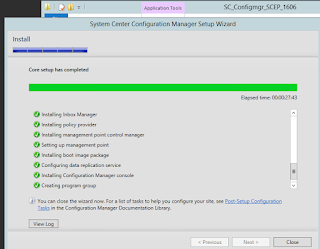
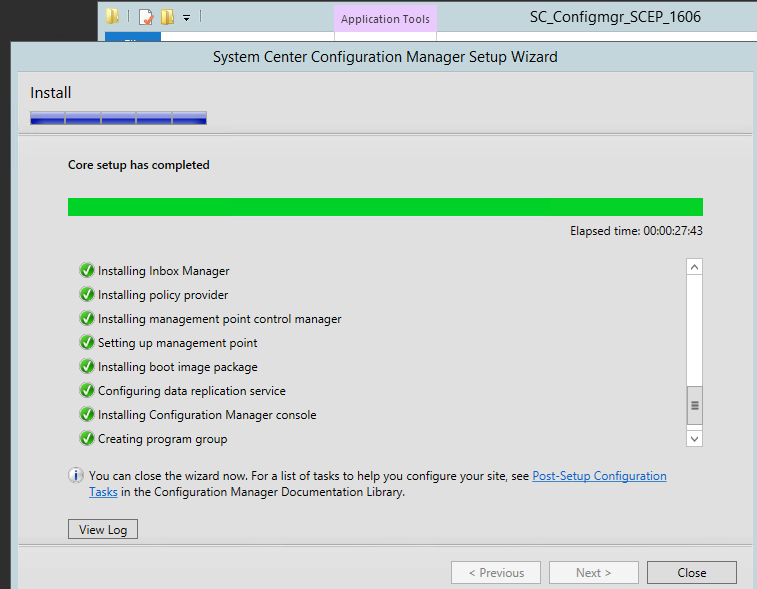
OK that's not a big deal for anyone but for me it was a three day long battle with lots of dead-ended installs, undo's and redo's. So, at long last this is the famous screen I wanted to see so much! All green! /me happy now, thanks Prajwal Desai
2015. október 14., szerda
Veeam Backup & Restore 8.0 installation
I've run into this beauty recently:
[Host] Failed to install deployment service.
The Network path was not found
--tr: Failed to create persistent connection to ADMIN$ shared folder on host [Host].
--tr: Failed to install service [VeeamDeploymentService] was not installed on the host [Host].
 Discussed here or here or here
Of course I had everything okay, I reached ADMIN$ share, had Remote Registry Service started and so on, all the other stuff. Found an interesting workaround:
"What happens if you deploy required packages on that server manually, and try to add it to a console afterwards? Required packages are VeeamHvIntegration.msi and VeeamTransport.msi that are located in C:\Program Files\Veeam\Backup and Replication\Backup\Packages. "
Sadly it didn't help either. Finally I got the clue here: "Creating another domain admin credentials fixes the problem."
I don't understand why in hell it failed to install with the default domain administrator but anyway, who cares. Just another a few hours to waste. So create a dedicated domain admin, e.g. veeamdeployer, with a super secure password.
[Host] Failed to install deployment service.
The Network path was not found
--tr: Failed to create persistent connection to ADMIN$ shared folder on host [Host].
--tr: Failed to install service [VeeamDeploymentService] was not installed on the host [Host].
Of course I had everything okay, I reached ADMIN$ share, had Remote Registry Service started and so on, all the other stuff. Found an interesting workaround:
"What happens if you deploy required packages on that server manually, and try to add it to a console afterwards? Required packages are VeeamHvIntegration.msi and VeeamTransport.msi that are located in C:\Program Files\Veeam\Backup and Replication\Backup\Packages. "
Sadly it didn't help either. Finally I got the clue here: "Creating another domain admin credentials fixes the problem."
I don't understand why in hell it failed to install with the default domain administrator but anyway, who cares. Just another a few hours to waste. So create a dedicated domain admin, e.g. veeamdeployer, with a super secure password.
 |
| Whooha, success. |
 |
| My first mighty Veeam Backup backup is in progress! |
 |
| File Level Restore from a Linux VM is an awesome feature from Veeam |
2015. szeptember 15., kedd
Exchange Survival Kit 3. - hardening and log searching

For the Send Connector(s):
Open your EAC - Mail Flow - Send Connectors - Select your SEND connector and click on Scoping. On the bottom, find FQDN field and fill it implicitly.
For the Receive Connector(s):
You won't be able to change your internal hostname to your FQDN because your will get an obfuscating error. The phenomenon and the solution detailed in this blog. It's a nice trick but personally I don't care about keeping the timestamp and so on. What's more, I don't think anyone care about them.So simply open your Exchange Powershell and:
Get-ReceiveConnector|select identity,bindingsFind your connector which bound to port 25 and:
Set-ReceiveConnector <ConnectorIdentity> -Banner "220 go ahead and make my day."
Hide your client's IP
"In practice that means if you sent an email from Outlook, Outlook Web App (OWA) or an ActiveSync-connected smartphone while on the Corporate Wi-Fi, your device’s Corporate Wi-Fi IP address will be contained in the email. If you were connected to your home Internet at the time, your (public) home Internet IP address will be in the email.
This may give a recipient, or any party snooping up the email while in transit, decent clues of the network you were connected to and the whereabouts of your staff and you. " (all credits go to Will Neumann including the pics)


Searching logs for emails
An example worth thousand words! Note the tricky subject selector expression: selects both the "robbery" subjects AND the empty subjects. (because of the -or operator)Get-MessageTrackingLog -Server [YOUR.CAS.SERVERNAME] -ResultSize Unlimited -Recipients [your.user@domain.com] -Start "9/12/2015 08:59:59" -End (Get-Date).AddHours(-72) | where{$_.sender -like "*@sender.com"}|where{$_.eventid -like "*eceiv*"}|Where-Object {$_.MessageSubject -match "robbery" -or $_.MessageSubject -notlike ""} select eventid,sender,recipients,messagesubject,timestamp -autosize | ConvertTo-Html > "C:\reports\track.html"
It hits and displays the first AND/OR (disjunction again, my favourite operation!) second matched recipients in a GUI:
Get-MessageTrackingLog -recipients john.snow@got.com,aragorn@mordor.org | select-object eventid,timestamp,messageid,sender,recipient,messagesubject | out-gridview
2015. július 28., kedd

2015. június 16., kedd
Adding CSVs on Windows 2012 R2 Hyper-V Failover Cluster
In the first part of this article I have added some physical and virtual disk to my Dell iSCSI storage. Of course new vdisks do not appear immediately in the failover cluster manager console.
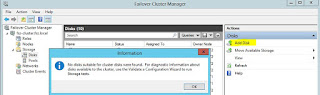


.. and try to add it again by the FCM console - this time surely with success. But this is going to be only an "available storage" - still needs to be added to the failover role.


So I opened up my disk management console on my hyper-v host.


As you can see a new raw disk appears. We should bring it online, initialize, format and provide the disk a descriptive name.


.. and try to add it again by the FCM console - this time surely with success. But this is going to be only an "available storage" - still needs to be added to the failover role.

It's a good practice to rename the new disk to ease further identification and error hunting.

Voila, the new clustered virtual disk is ready to host my new VM's image files, you know the .vhdxs and so on.
2015. május 27., szerda
"Verbose" event logging in Windows
The behavior that my Windows 2008 Network Policy Server (aka Radius Server) did not log
the successfully authorized usernames always bothered me. Fortunately
there is a way to get that stupid habit to work as expected.
Open an elevated command promt and type this to get a list of your event categories and their subcategories:
Auditpol /list /subcategory:* /r (optional)
Then type: (note that category name strings are localized!)
Auditpol /set /subcategory:"Network Policy Server" /success:enable /failure:enable
and... backup your policy(ies):
Auditpol /backup /file:C\mypolic.csv (optional)
Another method to log both Event 6273 and 6279 could be done via a GPO:
Computer Configuration -> Policies -> Windows Settings -> Security Settings -> Advanced Audit Policy Configuration -> Audit Policies -> Logon/Logoff -> Audit Network Policy Server (set both success and failure to enable). Don't forget to gpupdate /force.
Further reading here.
Open an elevated command promt and type this to get a list of your event categories and their subcategories:
Auditpol /list /subcategory:* /r (optional)
Then type: (note that category name strings are localized!)
Auditpol /set /subcategory:"Network Policy Server" /success:enable /failure:enable
and... backup your policy(ies):
Auditpol /backup /file:C\mypolic.csv (optional)
Another method to log both Event 6273 and 6279 could be done via a GPO:
Computer Configuration -> Policies -> Windows Settings -> Security Settings -> Advanced Audit Policy Configuration -> Audit Policies -> Logon/Logoff -> Audit Network Policy Server (set both success and failure to enable). Don't forget to gpupdate /force.
Further reading here.
2015. március 3., kedd
Incremental back up vhdx files of Hyper-V Virtual Machines hosted on Cluster Shared Volumes to a network share
It's 2015 so why would anyone still use Windows Server 2008 R2? Windows Server Backup in Windows Server 2012 includes great (but limited,see below) support for CSV backup. Some notes and warnings:
Actually, it isn't that good. What if your SAN blows up? You lost all your VMs and your VMs' backups at the same time. You also need to have a fool-proof off-site backup and it must be easily handled. Luckily, there is a simple solution without the need to include third party tools, like HVbackup. (which is, anyway, a good one)
Let's say that your first Hyper-V Host server called HOST1 and your VMs running by it are named VM1 and VM2.
So you have a file system on Host1 like this:

as C:\ClusterStorage\Volume4\VM1\ ....
To backup your first virtual guest (with its entire CSV, being on the safe side) on your external backup server share, just execute:
wbadmin start backup -include:C:\ClusterStorage\volume4\ -backuptarget:\\backupserver\vmbackup\vm1
It takes some time:

You can easily restore files from your VM's virtual disk if you find it in the backup:
 Then just mount it in your Disk Management (Attach VHD) .....
 and then assign a drive letter to it, open your new disk with a file explorer and find your real VD :) inside it. You should repeat above process by attaching this real VD also with your Disk Management console.
In case you need to restore your whole VM (whole means: disaster recovery including all its Hyper-V settings)
Find your backup versions: (if you are lucky enough to have more than a single one)
wbadmin get versions -backuptarget:\\backupserver\vmbackup\vm1
Restoring: (be careful)
wbadmin start recovery -version:02/11/2015-08:25 -backuptarget:\\backupserver\vmbackup\vm1 -itemtype:file -items:C:\ClusterStorage\Volume4\ -recursive -recoverytarget:Z\recover -machine:HOST1
What did I mean when I said backup versions? Have you ever been frustrated that Windows Backup can't maintain multiple versions on a network share? So did I. I've tried to cheat WSB with using a local hardlink pointing out to the network share.
mklink /D M:\MyNetwork \\mybackupserver\vmbackup
and
wbadmin start backup -include:C:\ClusterStorage\volume4\ -backuptarget:\\localhost\d$\MyNetwork\vm1 -quiet
Tadaamm! So far so good.
Unfortunately,
wbadmin get versions -backupTarget:M:\MyNetwork
matter-of-factly answers that it can't be fooled in such a stupid way.
Meanwhile, here are some useful facts from Technet topics to consider about WBS:
You can also set -vssFULL parameter in backup jobs but there's not much use in doing so. According to the manual: "If specified, performs a full backup using the Volume Shadow Copy Service (VSS). Each file's history is updated to reflect that it was backed up. If this parameter is not used, wbadmin start backup makes a copy backup, but the history of files being backed up is not updated." In short: "vssfull is only meaningful if there is another 3rd party backup application is being simultaneously used on the same machine along with server backup application and you have application like exchange running on the machine who have vss writers. if that is not the case - it can be ignored and defaults will work fine."
And "All backups after first backup automatically takes incremental storage space on the backup location since changes are tracked using volume shadow copy on the backup location. This incremental storage space is proportional to the changes from the last backup."
- Virtual machines hosted on CSV’s cannot be added as part of normal system backup configuration
- Windows Server Backup has to be configured on all nodes to ensure that backup and recovery will be available in the event of a failure on one of the nodes in the cluster.
- Volumes recovery not supported - can be cheated
- Security access control lists are not applicable on CSV file service root. Therefore, file recovery to the root of CSV volume is not supported.
Actually, it isn't that good. What if your SAN blows up? You lost all your VMs and your VMs' backups at the same time. You also need to have a fool-proof off-site backup and it must be easily handled. Luckily, there is a simple solution without the need to include third party tools, like HVbackup. (which is, anyway, a good one)
Let's say that your first Hyper-V Host server called HOST1 and your VMs running by it are named VM1 and VM2.
So you have a file system on Host1 like this:
as C:\ClusterStorage\Volume4\VM1\ ....
To backup your first virtual guest (with its entire CSV, being on the safe side) on your external backup server share, just execute:
wbadmin start backup -include:C:\ClusterStorage\volume4\ -backuptarget:\\backupserver\vmbackup\vm1
It takes some time:
You can easily restore files from your VM's virtual disk if you find it in the backup:
In case you need to restore your whole VM (whole means: disaster recovery including all its Hyper-V settings)
Find your backup versions: (if you are lucky enough to have more than a single one)
wbadmin get versions -backuptarget:\\backupserver\vmbackup\vm1
Restoring: (be careful)
wbadmin start recovery -version:02/11/2015-08:25 -backuptarget:\\backupserver\vmbackup\vm1 -itemtype:file -items:C:\ClusterStorage\Volume4\ -recursive -recoverytarget:Z\recover -machine:HOST1
What did I mean when I said backup versions? Have you ever been frustrated that Windows Backup can't maintain multiple versions on a network share? So did I. I've tried to cheat WSB with using a local hardlink pointing out to the network share.
mklink /D M:\MyNetwork \\mybackupserver\vmbackup
and
wbadmin start backup -include:C:\ClusterStorage\volume4\ -backuptarget:\\localhost\d$\MyNetwork\vm1 -quiet
Tadaamm! So far so good.
Unfortunately,
wbadmin get versions -backupTarget:M:\MyNetwork
matter-of-factly answers that it can't be fooled in such a stupid way.
In short, it sadly won't be versioning, just keeps one full version as usual. Bad luck. Folks say I should use iSCSI based network drives because thats the only way to get WSB versioning. I don't want to bother with this because I already have lots of iSCSI drives from the SAN and I would be a bit afraid of messing up these drives from different sources.
wbadmin 1.0 - Backup command-line tool
(C) Copyright 2013 Microsoft Corporation. All rights reserved.
The backup cannot be completed because the backup storage destination is a shared folder mapped to a drive letter. Use the Universal Naming Convention (UNC) path (\\servername\sharename\) of the backup storage destination instead.
Meanwhile, here are some useful facts from Technet topics to consider about WBS:
You can also set -vssFULL parameter in backup jobs but there's not much use in doing so. According to the manual: "If specified, performs a full backup using the Volume Shadow Copy Service (VSS). Each file's history is updated to reflect that it was backed up. If this parameter is not used, wbadmin start backup makes a copy backup, but the history of files being backed up is not updated." In short: "vssfull is only meaningful if there is another 3rd party backup application is being simultaneously used on the same machine along with server backup application and you have application like exchange running on the machine who have vss writers. if that is not the case - it can be ignored and defaults will work fine."
And "All backups after first backup automatically takes incremental storage space on the backup location since changes are tracked using volume shadow copy on the backup location. This incremental storage space is proportional to the changes from the last backup."
2015. január 9., péntek
How to remote control your domain Windows 7 computers via remote powershell and remote registry from a Windows 2012 domain controller
From briantist.com
If you are lucky enough to have no machines in your environment below Windows 7 / 2008 R2 (where do you work?!) then this is the only one you need. All of the settings we are using will be in Computer Configuration so if you want to disable User Configuration as I have go ahead.


If you are lucky enough to have no machines in your environment below Windows 7 / 2008 R2 (where do you work?!) then this is the only one you need. All of the settings we are using will be in Computer Configuration so if you want to disable User Configuration as I have go ahead.
- Create your GPO, name it what you want, place it where you want, etc.
- Edit your policy.
Enabling WinRM
- Browse to:
Policies > Administrative Templates > Windows Components > Windows Remote Management (WinRM) > WinRM Service- Open the “Allow Remote Server management through WinRM” policy setting (Server 2008 R2 and later).
- Open the “Allow automatic configuration of listeners” policy setting (Server 2008 and earlier).
- Set the Policy to Enabled.
- Set the IPv4 and IPv6 filters to * unless you need something specific there (check out the help on the right).
Setting the Firewall Rules
You can use the new Firewall with Advanced Features policy to configure the rule instead, but this will only work on Vista and above. Additionally, you should configure this from a Windows 7 / 2008 R2 machine because of a difference in the pre-defined rule.- Browse to:
Policies > Windows Settings > Security Settings > Windows Firewall with Advanced Security > Windows Firewall… > Inbound Rules - Right click and choose “New Rule…”
- Choose the “Windows Remote Management” pre-defined rule.
- When you click next you should see the two rules that will be added.
- Click next, choose to Allow the connection, and then Finish.
Service Configuration
At this point we have enough in place to get this working, but I like to do a few more things to ensure that the WinRM service is configured to start automatically and to restart on failure.- Browse to:
Policies > Windows Settings > Security Settings > System Services - Find the “Windows Remote Management (WS-Management)” service.
- Define the policy and give it a startup mode of Automatic.
- Browse to:
Preferences > Control Panel Settings > Services - Create a new Service preference item with the following parameters:
- General Tab

- Startup: No Change (the policy we set above will take precedence over this anyway)
- Service name: WinRM
- Service action (optional): Start service
- Recovery Tab

- First, Second, and Subsequent Failures: Restart the Service
- General Tab
Set powershell execution policy
Go to Computer configuration / Policies / Administrative templates: Policy definitons (ADMX files) / Windows components / Windows Powershell. Set "Turn on script execution" to "Allow all scripts". This policy setting exists under both "Computer Configuration" and "User Configuration" in the Local Group Policy Editor. The "Computer Configuration" has precedence over "User Configuration." If you disable or do not configure this policy setting, it reverts to a per-machine preference setting; the default if that is not configured is "No scripts allowed." !Remote registry access enable
1. On a domain controller, Start >
administrative tools > Group Policy Editor > Either edit an
existing policy or create a new one (Remember its a computer policy you need to link it to something with computers in it, if you link it to a users OU nothing will happen).
2. Navigate to, Local Computer
Policy > Computer Configuration > Policies > Windows Settings
> Security Settings > System Services.
3. In the right hand pane locate "Remote Registry".
4. Define the policy, and set the startup type to automatic.

Article is from petenetlive.
2014. december 22., hétfő
Windows 2012 DHCP cluster has been split - check your timeservers
This is the icon you definitely don't want to see on your DHCP console:

First, check your network connectivity with the partner server. If it has gone down previously the parner relationship should be restored automatically when it comes back.
Second, you likely have a time diff issue. Standardize your time setup on ALL your physical Windows servers (NOT just on your PDC emulator. No doubt. Trust me.) (and, therefore, time is getting ready on domain clients) with the following commands:
net stop w32time
w32tm /config /syncfromflags:manual /manualpeerlist:"1.pool.ntp.org,2.pool.ntp.org,3.pool.ntp.org,time-b.nist.gov"
w32tm /config /reliable:yes
net start w32time
No need to
First, check your network connectivity with the partner server. If it has gone down previously the parner relationship should be restored automatically when it comes back.
Second, you likely have a time diff issue. Standardize your time setup on ALL your physical Windows servers (NOT just on your PDC emulator. No doubt. Trust me.) (and, therefore, time is getting ready on domain clients) with the following commands:
net stop w32time
w32tm /config /syncfromflags:manual /manualpeerlist:"1.pool.ntp.org,2.pool.ntp.org,3.pool.ntp.org,time-b.nist.gov"
w32tm /config /reliable:yes
net start w32time
No need to
w32tm /resync after this. Time should be corrected immediately
2013. december 17., kedd
Microsoft Windows Server: READ ONLY Domain Controllers ?! Nooooo
RODC? That's one of the biggest fallacy in the IT I've ever seen. For those who don't know: that's some kind of domain controller to be placed in a branch office. That's an office where security is in question, where servers can easily be stolen.
RODC's don't have writeable LDAP DB locally so they forward all the login requests to a RWDC. Do you see how supersecured they are?
Here is where the mystification begin: RODCs still have cached passwords locally so in case hackers gain direct access to the local system passwords - theoretically - could be compromised.
And the most biggest terrible security risk: passwords and accounts still CAN BE reset, re-enabled or in any way modified against an RODC. In this case an RODC stupidly forward the request to a RWDC and of course RWDC will automatically commit and redistribute the changes because of the confidential relationship between them.
In short: "When the password is changed or reset against an RODC, the RODC will forward the change to a W2K8 RWDC and after that it will automatically inbound replicate the password using the "Replicate Single Object" method assuming the account for which the password was reset/changed is still allowed to be cached/stored."
See more info for example at http://social.technet.microsoft.com/Forums/windowsserver/en-US/198e7c6a-0541-43cf-803f-1259e66fdd80/how-to-know-readonly-domain-controller


RODC's don't have writeable LDAP DB locally so they forward all the login requests to a RWDC. Do you see how supersecured they are?
Here is where the mystification begin: RODCs still have cached passwords locally so in case hackers gain direct access to the local system passwords - theoretically - could be compromised.
And the most biggest terrible security risk: passwords and accounts still CAN BE reset, re-enabled or in any way modified against an RODC. In this case an RODC stupidly forward the request to a RWDC and of course RWDC will automatically commit and redistribute the changes because of the confidential relationship between them.
In short: "When the password is changed or reset against an RODC, the RODC will forward the change to a W2K8 RWDC and after that it will automatically inbound replicate the password using the "Replicate Single Object" method assuming the account for which the password was reset/changed is still allowed to be cached/stored."
See more info for example at http://social.technet.microsoft.com/Forums/windowsserver/en-US/198e7c6a-0541-43cf-803f-1259e66fdd80/how-to-know-readonly-domain-controller


2013. június 6., csütörtök
Hardening Hyper-V 2012 clusters, Deployment Bible
I've came across an awesome article, originally on http://social.technet.microsoft.com/Forums/en-US/winserverhyperv/thread/61e18aaf-de6a-42e7-aa41-3cee790a1236/. In case it disappers I'm taking an exact copy of it. I do hope it wont violate any law. :P Thanks Roger Osborne, anyway.
[...]
[...]
GENERAL (HOST):
⎕
Use Server Core, or the Windows Minimal Interface, to reduce OS
overhead, reduce the potential attack surface, and to minimize reboots
(due to fewer software updates).
- Server Core information: http://msdn.microsoft.com/en-us/library/windows/desktop/hh846313(v=vs.85).aspx
- Windows Minimal Interface Information: http://msdn.microsoft.com/en-us/library/windows/desktop/hh846317(v=vs.85).aspx
⎕
Ensure hosts are up-to-date with recommended Microsoft updates, to
ensure critical patches and updates – addressing security concerns or
fixes to the core OS – are applied.
⎕ Ensure all applicable Hyper-V hotfixes and Cluster hotfixes
(if applicable) have been applied. Review the following sites and
compare it to your environment, since not all hotfixes will be
applicable:
- A fellow Microsoft employee, Cristian Edwards, has recently posted a PowerShell script that detects which Hyper-V and Failover Clustering 2012 updates you are missing based on the list updated by the Microsoft Product Group! Check it out here: http://blogs.technet.com/b/cedward/archive/2013/05/24/validating-hyper-v-2012-and-failover-clustering-2012-hotfixes-and-updates-with-powershell.aspx
- Update List for Windows Server 2012 Hyper-V: http://social.technet.microsoft.com/wiki/contents/articles/15576.hyper-v-update-list-for-windows-server-2012.aspx
- List of Failover Cluster Hotfixes: http://social.technet.microsoft.com/wiki/contents/articles/15577.list-of-failover-cluster-hotfixes-for-windows-server-2012.aspx
- Failover Cluster Management snap-in crashes after you install update 2750149 on a Windows Server 2012-based failover cluster:
⎕
Ensure hosts have the latest BIOS version, as well as other hardware
devices (such as Synthetic Fibre Channel, NIC’s, etc.), to address any
known issues/supportability
⎕
Host should be domain joined, unless security standards dictate
otherwise. Doing so makes it possible to centralize the management of
policies for identity, security, and auditing. Additionally, hosts must
be domain joined before you can create a Hyper-V High-Availability
Cluster.
· For more information: http://technet.microsoft.com/en-us/library/ee941123(v=WS.10).aspx
⎕
RDP Printer Mapping should be disabled on hosts, to remove any chance
of a printer driver causing instability issues on the host machine.
- Preferred method: Use Group Policy with host servers in their own separate OU
- Computer Configuration –> Policies –> Administrative Templates –> Windows Components –> Remote Desktop Services –> Remote Desktop Session Host –> Printer Redirection –> Do not allow client printer redirection –> Set to "Enabled
⎕
Do not install any other Roles on a host besides the Hyper-V role and
the Remote Desktop Services roles (if VDI will be used on the host).
- When the Hyper-V role is installed, the host OS becomes the "Parent Partition" (a quasi-virtual machine), and the Hypervisor partition is placed between the parent partition and the hardware. As a result, it is not recommended to install additional (non-Hyper-V and/or VDI related) roles.
⎕ The only Features that should be installed on the host are: Failover Cluster Manager (if host will become part of a cluster), Multipath I/O (if host will be connecting to an iSCSI SAN, Spaces and/or Fibre Channel), or Remote Desktop Services if VDI is being used. (See explanation above for reasons why installing additional features is not recommended.)
[..]
Read the rest from on Technet or from here.
Feliratkozás:
Bejegyzések (Atom)