A következő címkéjű bejegyzések mutatása: Exchange 2013. Összes bejegyzés megjelenítése

2016. január 25., hétfő

Three small scrips

Hey there, long time no see. Nothing special news here, just wanted to see googlebots heading here. So here comes my first new year post, 3 minor scripts. First one is for Exchange: adds new email aliases for users from a .csv and makes it default address.

Import-Csv c:\scripts\data.csv -Header UZER,ADDRZ| Foreach{
Set-Mailbox $_.UZER -EmailAddressPolicyEnabled $false
   $user = Get-Mailbox -Identity $_.UZER
   $user.EmailAddresses+=$_.ADDRZ
   Set-Mailbox $user -PrimarySmtpAddress $_.ADDRZ
}


example of data.csv: (without any headers!)
mgibson,mel.gibson@mighty.com
ctom,tom.cruise@mighty.com
cjoe,joe.cool@mighty.com


Second one is a bit tricky. I wanted to list all my distribution groups and their members. There are lots of solutions for this, e.g. you can find an edifying blog entry here. Unfortunatelly most of these scripts don't work nowadays at Office365 Exchange because of this unpleasing nastiness:
Cannot process argument transformation on parameter 'Identity'. Cannot convert value to type "Microsoft.Exchange.Configuration.Tasks.DistributionGroupMemberIdParameter". Error: "Cannot convert hashtable to an object of the following type: Microsoft.Exchange.Configuration.Tasks.DistributionGroupMemberIdParameter. Hashtable-to-Object conversion is not supported in restricted language mode or a Data section."                                                       
Explained on reddit by PsTakuu: It's not the object being passed into the Get-DistributionGroupMember by the pipeline that is causing the issue, it's that you are shoving an entire object into the first positional parameter (Identity) and it doesn't accept hash tables.
Here's a way to recreate your issue:
Get-DistributionGroup | select -First 1 | %{Get-DistributionGroupMember $_}
Here's the way to fix:
Get-DistributionGroup | select -First 1 | %{Get-DistributionGroupMember $_.identity} 

So here is the final working solution:
foreach ($group in Get-DistributionGroup) { get-distributiongroupmember $group.displayname | ft @{expression={$_.displayname};Label="$group"}}
The results can be redirected to file like this: $( foreach (............) )|out-file file.txt
or
$result = foreach (...)
$result | out-file file.txt -append

A +1 powerlist, for bonus: 
Get-DistributionGroup|format-table -wrap -property name,emailaddresses,hiddenfromaddresslistsenabled,RequireSenderAuthenticationEnabled > c:\groups.txt

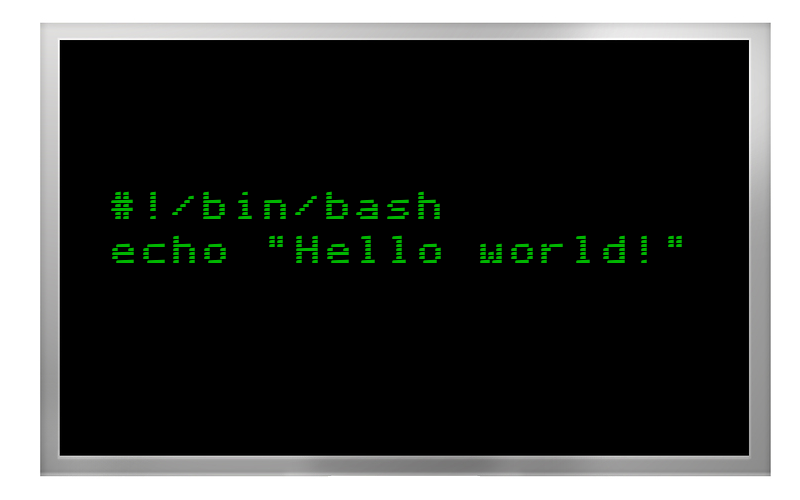
 The third supersimple linuxer script adds users to a linux system and into samba fileserver database. I don't care about real names, room numbers and so on. That also creates tricky .bat files to make it easier to attach the network drive to windows users later.

#!/bin/bash
while read line; do
uzer=$(echo $line|cut -d ':' -f1)
pazz=$(echo $line|cut -d ':' -f2)
useradd -p $(openssl passwd -1 $pazz) $uzer --shell /bin/false --no-create-home --no-user-group
echo -ne "$pazz\n$pazz\n" | smbpasswd -a -s $uzer
echo "cmdkey /add:192.168.85.254 /user:workgroup\\$uzer /pass:$pazz" > /root/batz/$uzer.bat
echo "net use m: \\\192.168.85.254\\workz /P:Yes" >> /root/batz/$uzer.bat
done < users.txt

example of users.txt:
melbigson:jydac3sS
tomcruise:hEieafS
joecool:nhi252ax


2015. szeptember 15., kedd

Exchange Survival Kit 3. - hardening and log searching

If your servers have any sensitive data about their services (e.g. version numbers) to hide from from the wide world then you definitely want to change some default settings. First, it's adviseble to change your default Exchange SMTP banners and HELO string to hide your long and ugly default intro string.

For the Send Connector(s):

Open your EAC - Mail Flow - Send Connectors - Select your SEND connector and click on Scoping. On the bottom, find FQDN field and fill it implicitly.


For the Receive Connector(s):

You won't be able to change your internal hostname to your FQDN because your will get an obfuscating error. The phenomenon and the solution detailed in this blog. It's a nice trick but personally I don't care about keeping the timestamp and so on. What's more, I don't think anyone care about them.
So simply open your Exchange Powershell and:
Get-ReceiveConnector|select identity,bindings
Find your connector which bound to port 25 and:
Set-ReceiveConnector <ConnectorIdentity> -Banner "220 go ahead and make my day."

Hide your client's IP 


"In practice that means if you sent an email from Outlook, Outlook Web App (OWA) or an ActiveSync-connected smartphone while on the Corporate Wi-Fi, your device’s Corporate Wi-Fi IP address will be contained in the email. If you were connected to your home Internet at the time, your (public) home Internet IP address will be in the email.
This may give a recipient, or any party snooping up the email while in transit, decent clues of the network you were connected to and the whereabouts of your staff and you. " (all credits go to Will Neumann including the pics)


Searching logs for emails

An example worth thousand words! Note the tricky subject selector expression: selects both the "robbery" subjects AND the empty subjects. (because of the -or operator)

Get-MessageTrackingLog -Server [YOUR.CAS.SERVERNAME] -ResultSize Unlimited -Recipients [your.user@domain.com] -Start "9/12/2015 08:59:59" -End (Get-Date).AddHours(-72) | where{$_.sender -like "*@sender.com"}|where{$_.eventid -like "*eceiv*"}|Where-Object {$_.MessageSubject -match "robbery" -or $_.MessageSubject -notlike ""} select eventid,sender,recipients,messagesubject,timestamp -autosize | ConvertTo-Html > "C:\reports\track.html"

It hits and displays the first AND/OR (disjunction again, my favourite operation!) second matched recipients in a GUI:

Get-MessageTrackingLog -recipients john.snow@got.com,aragorn@mordor.org | select-object eventid,timestamp,messageid,sender,recipient,messagesubject | out-gridview

2015. augusztus 28., péntek

Exchange 2013 Survival Kit 2. - restore and purge

Just found a great MS doc that efficiently explains the basics of how Exchange 2013 handles Recoverable Items Folder. In short: if one user asks you to restore some accidentely deleted and purged email, you no more need to restore the whole database from Windows Backup and mount it to be able to restore the whole mailbox into a former state. At least, in theory.
If you are lucky enough your user remembers the properties of the emails he purged:
- the senders names, or
- the subject strings, or
- the date interval in which the email(s) was.
Unfortunately, Exchange 2013 can't restore a subfolder in your mailbox. Find out why here.
"This seems like it would be a simple enhancement into the cmdlet since the attribute exists on the mail item object.  It would be my vote to make this enhancement since it make single-item restores almost worthless if a folder is accidentally deleted. [...] Thanks for making my life more difficult than it needs to be Microsoft."
(/me also grateful.)

Clearing a Recoverable Items Folder while Single Item recovery is enabled is a bit problematic. See Use the Shell to clean up the Recoverable Items folder for mailboxes that are placed on hold or have single item recovery enabled

Easiest way to export only the Recoverable Items Folder from the mailbox to a .pst:
New-MailboxExportRequest -mailbox joecool -filepath \\localhost\backup\joe.pst -IncludeFolders "Recoverable Items"
An other interesting method explained here using In Place eDiscovery but there are some limitations. According to MS: "You can use In-Place eDiscovery in the Exchange admin center (EAC) to search for missing items. However, when using the EAC, you can’t restrict the search to the Recoverable Items folder. Messages matching your search parameters will be returned even if they’re not deleted. After they’re recovered to the specified discovery mailbox, you may need to review the search results and remove unnecessary messages before recovering the remaining messages to the user’s mailbox or exporting them to a .pst file.
For details about how to use the EAC to perform an In-Place eDiscovery search, see Create an In-Place eDiscovery search. "
Frankly, I've never done a search like this in EAC. Instead, doing a similar thing in Powershell:
First, search your RIF and place the results to Discovery mailbox.
Search-Mailbox "Joe Cool" -SearchQuery "from:'Sam Knows' AND keyword1" -TargetMailbox "Discovery Search Mailbox" -TargetFolder "JoeRecovery" -LogLevel Full Second, search the Discovery again with the same phrase and put the results back into your user (or anyone's) mailbox. The results will show in a strange folder structure: in the upper level there is a short report about the search, a .csv attached with the matching files and somewhere deep in the folders you will find the actual mails.
Search-Mailbox "Discovery Search Mailbox" -SearchQuery "from:'Sam Knows' AND keyword1" -TargetMailbox "Joe Cool" -TargetFolder "Recovered Messages" -LogLevel Full -DeleteContent
(Note the DeleteContent switch: it's important to clear up the Discovery Search Mailbox after yourself.)
Putting the results directly into a .pst:
New-MailboxExportRequest -Mailbox "Discovery Search Mailbox" -SourceRootFolder "April Stewart Recovery" -ContentFilter {Subject -eq "April travel plans"} -FilePath \\MYSERVER\HelpDeskPst\AprilStewartRecovery.pst

You can use the EstimateOnly switch to return only get an estimate of the search results and not copy the results to a discovery mailbox. So, just simulating a search to see what would actually happen: (Examples from Microsoft):
New-MailboxSearch "FY13 Q2 Financial Results" -StartDate "04/01/2013" -EndDate "06/30/2013" -SourceMailboxes "DG-Finance" -SearchQuery '"Financial" AND "Fabrikam"' -EstimateOnly -IncludeKeywordStatistics Start-MailboxSearch "FY13 Q2 Financial Results"
Get-MailboxSearch "FY13 Q2 Financial Results" | FL Name,Status,LastRunBy,LastStartTime,LastEndTime,Sources,SearchQuery,ResultSizeEstimate,ResultNumberEstimate,Errors,KeywordHits

To check a user state:
Get-Mailbox "Joe Cool" | FL SingleItemRecoveryEnabled,RetainDeletedItemsFor
To enable a single user:
Set-Mailbox -Identity "Joe Cool" -SingleItemRecoveryEnabled $true
To enable everybody and raise the default retention time limit:
Get-Mailbox -ResultSize unlimited -Filter {(RecipientTypeDetails -eq 'UserMailbox')} | Set-Mailbox -SingleItemRecoveryEnabled $true -RetainDeletedItemsFor 30
Some more advanced search examples here.

How to destroy your mailboxes permanently


Just find your disconnected mailboxes:
Get-MailboxStatistics -Database "Database name" | where {$_.disconnectdate -ne $null} | select displayname,MailboxGUID

How to purge them:
Get-MailboxStatistics –Database <DB NAME> | where {$_.disconnectdate –ne $null} | select displayname,MailboxGUID Remove-StoreMailbox –Database <Database-Name> -Identity <MailboxGUID-from-the-previous-cmdlet> -MailboxState Disabled (The Remove-StoreMailbox only works against Disconnected and soft-deleted mailboxes!)

Remove all soft-deleted mailboxes:

Get-MailboxStatistics -Database MBD01 | where {$_.DisconnectReason -eq "SoftDeleted"} | foreach {Remove-StoreMailbox -Database $_.database -Identity $_.mailboxguid -MailboxState SoftDeleted}
or
Get-MailboxStatistics -Database MDB01 | where {$_.DisconnectReason -eq "disabled"} | foreach {Remove-StoreMailbox -Database $_.database -Identity $_.mailboxguid -MailboxState disabled -Confirm:$False}  
Hard delete a mailbox (no option to restore it from the actual database!) Remove-Mailbox <Mailbox> -Permanent:$True
Search for specific (or all) emails and delete them from a mailbox
Search-Mailbox -Identity "Joe Cool" -SearchQuery 'Subject:"Very important"' -DeleteContent
Search-Mailbox ... |or: New-MailboxExportRequest -ContentFilter {(Received -lt '11/21/2013') 
-and (Received -gt '11/15/2013') -or (Sent -lt '11/21/2013') -and (Sent 
-ge '11/15/2013')} -Mailbox joecool –FilePath \\Server01\e$\Exports\joecool.pst 
Search-Mailbox -Identity "Joe Cool" -DeleteContent  
Purge  recoverable items and deletions both
Search-mailbox -identity joe.cool -SearchDumpsterOnly -DeleteContent
Check back if it's OK
Get-MailboxFolderStatistics -Identity "Joe Cool" -FolderScope RecoverableItems | Format-Table Name,FolderAndSubfolderSize,ItemsInFolderAndSubfolders -Auto
before
after

2015. május 20., szerda

Querying Exchange quota limits in Powershell

Get-mailbox | where {$_.UseDatabaseQuotaDefaults -ne $true} 

Get-MailboxDatabase | Get-MailboxStatistics | Where-Object {$_.StorageLimitStatus -match 'BelowLimit|IssueWarning|ProhibitSend|MailboxDisabled'} 

Get-mailbox | get-mailboxstatistics | sort-object totalitemsize –descending | ft displayname,totalitemsize

Get-PublicFolder -Recurse -ResultSize Unlimited  | Get-PublicFolderStatistics -Server <exchange> | Select FolderPath, ItemCount, TotalAssociatedItemSize, TotalDeletedItemSize, TotalItemSize | fl Get-Mailbox -ResultSize Unlimited | Get-MailboxStatistics | Sort-Object TotalItemSize -Descending | Select-Object DisplayName,StorageLimitStatus,TotalItemSize -First 100  | Sort-Object TotalItemSize

Set-Mailbox <mailbox> -UseDatabaseQuotaDefaults $false -IssueWarningQuota 8GB -ProhibitSendQuota 8.5GB


Get-PublicFolder "\" -Recurse -resultsize unlimited| Get-PublicFolderStatistics -Server <server> | Select FolderPath, ItemCount, TotalAssociatedItemSize, TotalDeletedItemSize, TotalItemSize | fl

2014. október 14., kedd

Can't install an additional Exchange 2013 in the domain

Today I've just run into this funny issue. It took two hours for me to get the clue!

Here is the error report:

Error:
Global updates need to be made to Active Directory, and this user account isn't a member of the 'Enterprise Admins' group.
For more information, visit: http://technet.microsoft.com/library(EXCHG.150)/ms.exch.setupreadiness.GlobalUpdateRequired.aspx

Error:
You must be a member of the 'Organization Management' role group or a member of the 'Enterprise Admins' group to continue.
For more information, visit: http://technet.microsoft.com/library(EXCHG.150)/ms.exch.setupreadiness.GlobalServerInstall.aspx

Error:
You must use an account that's a member of the Organization Management role group to install or upgrade the first Mailbox server role in the topology.
For more information, visit: http://technet.microsoft.com/library(EXCHG.150)/ms.exch.setupreadiness.DelegatedBridgeheadFirstInstall.aspx

Error:
You must use an account that's a member of the Organization Management role group to install the first Client Access server role in the topology.
For more information, visit: http://technet.microsoft.com/library(EXCHG.150)/ms.exch.setupreadiness.DelegatedCafeFirstInstall.aspx

Error:
You must use an account that's a member of the Organization Management role group to install the first Client Access server role in the topology.
For more information, visit: http://technet.microsoft.com/library(EXCHG.150)/ms.exch.setupreadiness.DelegatedFrontendTransportFirstInstall.aspx

Error:
You must use an account that's a member of the Organization Management role group to install or upgrade the first Mailbox server role in the topology.
For more information, visit: http://technet.microsoft.com/library(EXCHG.150)/ms.exch.setupreadiness.DelegatedMailboxFirstInstall.aspx

Error:
You must use an account that's a member of the Organization Management role group to install or upgrade the first Client Access server role in the topology.
For more information, visit: http://technet.microsoft.com/library(EXCHG.150)/ms.exch.setupreadiness.DelegatedClientAccessFirstInstall.aspx

Error:
You must use an account that's a member of the Organization Management role group to install the first Mailbox server role in the topology.
For more information, visit: http://technet.microsoft.com/library(EXCHG.150)/ms.exch.setupreadiness.DelegatedUnifiedMessagingFirstInstall.aspx

Error:
Setup encountered a problem while validating the state of Active Directory: Couldn't find the Enterprise Organization container.
For more information, visit: http://technet.microsoft.com/library(EXCHG.150)/ms.exch.setupreadiness.AdInitErrorRule.aspx

Error:
The forest functional level of the current Active Directory forest is not Windows Server 2003 native or later. To install Exchange Server 2013, the forest functional level must be at least Windows Server 2003 native.
For more information, visit: http://technet.microsoft.com/library(EXCHG.150)/ms.exch.setupreadiness.ForestLevelNotWin2003Native.aspx

Error:
Either Active Directory doesn't exist, or it can't be contacted.
For more information, visit: http://technet.microsoft.com/library(EXCHG.150)/ms.exch.setupreadiness.CannotAccessAD.aspx

Warning:
Setup will prepare the organization for Exchange 2013 by using 'Setup /PrepareAD'. No Exchange 2010 server roles have been detected in this topology. After this operation, you will not be able to install any Exchange 2010 servers.
For more information, visit: http://technet.microsoft.com/library(EXCHG.150)/ms.exch.setupreadiness.NoE14ServerWarning.aspx


Obviously, the AD was prepared previously (having a working Exchange 2013) and I'm a Schema and Enterprise Admin.
Solution:
It turned out that I was trying to install the Exchange in site A (a site with a working DC) but the the Schema Master FSMO role holder DC was located in site B. Of course both was perfectly connected and replicating with the other. However, for whatever reason my clever Exchange setup was simply unable to connect the Schema Master and exited in such a stupid way. I moved the Schema Master role to site A and voila, Exchange setup immediately worked.

2014. október 10., péntek

How to mass-upload profile pictures to Exchange 2013

It's friday afternoon, an hour before the end of your shift. Biggest boss walkes into your office and says:
- It's good to see you being so happy to see me. I've got a job for you. You gotta load our new employees' high-resolution photos into our company's Exchange2013 immediately. You should be able to find all the 180 picture files on the fileserver. Actualy, it should have done yesterday. So... (dramatic pause)... have you done it yet ?
  1. - Don't panic.
  2. - Resize or cut those freaking profile photos to 648x648 pixels with a free smart photo viewer, for example with a batch job in Irfanview.
  3. - Rename the files to match your users' login names, e.g. Bill Gates -- billgates.jpg - That's the trickiest part if your files are called user3412_10102014.png or whatever. That'd suck. Force your colleagues to name the files properly next time.
  4. - Use this script. It reads all the files in the sourcedir, takes the username from filename and puts the picture into that user's corresponding Exchange attribute.

$sourcedir = "c:\temp\photos\"
$files = Get-ChildItem $sourcedir -Filter "*.jpg"
$files | ForEach-Object {

   $fullpath= $sourcedir + $_.Name
   $name = $_.BaseName
   write $fullpath
   write $name

   $photo = ([Byte[]] $(Get-Content -Path $fullpath -Encoding Byte -ReadCount 0))
   Set-UserPhoto -Identity $name -PictureData $photo -Confirm:$False
   Set-UserPhoto -Identity $name -Save -Confirm:$False
  
}


once ready... paste the following into your PS:
Set-OwaVirtualDirectory -ChangePasswordEnabled $true -SetPhotoEnabled $false -DisplayPhotosEnabled $true

Set-CASMailbox user -OWAMailboxPolicy Default 
or
Get-CASMailbox -ResultSize Unlimited | Set-CASMailbox -OWAMailboxPolicy Default

Curious why 648x648 is that dimension exactly? Nobody knows. Frankly. The point is you will end up with 3 different sized picture stored for each account in your AD and Exchange 2013 and Lync 2013 or Sharepoint 2013 (if you have any)
  1. 48 x 48 pixels in AD thumbnailPhoto attribute field (If you upload a photo to Exchange 2013, Exchange will automatically create a 48 pixel by 48 pixel version of that photo and update the user's thumbnailPhoto attribute. Note, however, that the reverse is not true: if you manually update the thumbnailPhoto attribute in Active Directory the photo in the user's Exchange 2013 mailbox will not automatically be updated).
  2. 96 x 96 pixels for use in Microsoft Outlook 2013 Web App and Microsoft Outlook 2013
  3. 648 x 648 pixels for use in Lync 2013 and Sharepoint 2013

2014. január 23., csütörtök

Email forwarding

More powershell fun

Setting forward-only to an internal address :
Set-Mailbox -Identity "Joe Cool" -ForwardingAddress "james@mydomain.com"
Setting deliver-and-forward to an internal address :
Set-Mailbox -Identity "Joe Cool" -ForwardingAddress "james@mydomain.com" -DeliverToMailboxAndForward $true
Setting forward to an external address :
New-MailContact -Name "Very Important Dick" -ExternalEmailAddress "dick@vip.com"
Set-Mailbox "Joe Cool" -ForwardingAddress "dick@vip.com"
Listing what mailboxes are set to forward :
Get-Mailbox -Filter { ForwardingAddress -like '*' } | select-object Name,ForwardingAddress,ForwardingSmtpAddress
Cancel any type of forwarding:
Set-Mailbox -Identity [our.user@mydomain.com] -DeliverToMailboxandforward $False -ForwardingSMTPAddress $Null -ForwardingAddress $Null
Mass canceling:
Get-Mailbox | Where {$_.RecipientType -eq “UserMailbox”} | Set-Mailbox -ForwardingSmtpAddress $null
 

2013. október 18., péntek

Exchange (Public Folder) Powershell tricks (applies to 2010 and 2013)

Say you have a difficult public folder structure and you have to search, for example, quota settings of a folder, in less than five seconds. 
Then do:
get-publicfolder -recurse -resultsize unlimited|where {$_.name -like "First_chars_of_thePF*"}| ft Identity,IssueWarningQuota                                                                                                       

To search based on the email address of the PF (shows lots of details!)
Get-MailPublicFolder "email.address.of.the.PF@yourdomain.com"|fl               

 Modify the quota on the PF:
Set-PublicFolder -identity "\First_level_NAME\Second_level_NAME\3rd_level_NAME" -ProhibitPostQuota 5000MB -IssueWarningQuota 4800MB

Getting some useless data about the PF and its subfolders:              
 Get-PublicFolderStatistics -identity "\First_level_NAME\Second_level_NAME\3rd_level_NAME" -GetChildren| Format-List                                                                

How your databases are called:
Get-MailboxDatabase|ft name,publicfolderdatabase  
 
How your public folders are called:
Get-PublicFolder \ -recurse|ft name,parentpath,replicas

Mailbox
User mailbox size:
Get-MailboxFolderStatistics user.name -FolderScope "Inbox" | Select Name,FolderandSubFolderSize,ItemsinFolderandSubfolders 

More fun on this subject: http://exchangeserverpro.com/reporting-mailbox-folder-sizes-with-powershell/

Yet another awesome collection of Exchange PS commands
http://waynes-world-it.blogspot.com/2013/04/exchange-powershell-commands.html


2013. május 23., csütörtök

Exchange 2013 FSW fun

Long time no see. I feel I gotta do some post because really in the need of seeing googlebots coming to my site. Hehh.
Just came across with a funny post. It deserves a share. Have fun.

"How to use a Domain Controller as an Exchange 2013 DAG Witness Server (Don’t)

If you’re setting up Exchange 2013 in a lab, you may have a requirement to use a domain controller as a File Share Witness (FSW) host.
Obligatory disclaimer: While this is definitely not recommended practise in a production environment, and may have undesirable results, it will probably work. I highly doubt Microsoft support this, though I have been unable to find any concrete evidence on it (frankly, it’s such terrible practise they shouldn’t have to publicise advice against it). If you can come up with a method to avoid following this guide in production, I implore you to do so.
The File Share Witness is used as the winning vote when your DAG has an even number of hosts – the same principle as the quorum drive in a Failover Cluster. This is a file server that all DAG members can read and write (but cannot be a DAG member for obvious reasons).
If you just try to create a DAG and use a domain controller as a FSW, you’ll get this error message:

 ...."
Read the rest here.